Last updated: June 2026
Transparency: Some links in this article are affiliate links. If you purchase through them, we may earn a commission at no extra cost to you. This does not affect our rankings or recommendations.
Medical disclaimer: This article is for informational purposes only and does not constitute medical advice. If you experience persistent wrist, shoulder, neck, or back pain, consult a licensed physician or physical therapist before making changes to your workspace. Ergonomic keyboards and mice can reduce repetitive strain, but they are not treatments for diagnosed conditions such as carpal tunnel syndrome, tendinitis, or cervical disc conditions.
Most people who buy an ergonomic keyboard or mouse do it because something hurts: a wrist, a shoulder, a persistent upper back ache. That is the right instinct, but the wrong purchase order. Ergonomic input devices address a real problem — the unnatural positions that standard keyboards and mice impose on your hands, forearms, and shoulders — but they work best when combined with correct positioning of everything else in your workspace. A vertical mouse on a desk that is too high does less good than a standard mouse on a correctly positioned desk.
That said, once your chair height, desk height, and monitor position are correct, the keyboard and mouse are the components most in contact with your body during the workday, and their design has a measurable effect on upper body strain. This guide covers what to look for, which specific products stand out in 2026, and how to match the type of device to the type of pain you are experiencing.
Why standard keyboards and mice cause upper body pain
A standard flat keyboard forces your hands into two positions that accumulate strain over extended use. The first is ulnar deviation — the outward bend at the wrist that occurs when both hands reach toward the center of a flat keyboard placed directly in front of the body. The second is wrist extension — the upward bend that occurs when using a keyboard with a standard positive tilt (higher at the back than the front), which raises the key surface and forces the wrists upward.
Both positions increase compressive pressure in the carpal tunnel — the narrow passage in the wrist through which the median nerve passes — and activate the forearm muscles in a sustained, isometric way that creates fatigue and, over time, repetitive strain.
A standard horizontal mouse compounds these issues. To use a conventional mouse, your forearm must be rotated to a palm-down position (pronation). This rotation is natural for short periods but strains the tendons and the two forearm bones (radius and ulna) when sustained for hours. The mouse also sits to the right of the keyboard, which for most people means extending the right arm several inches further than the natural shoulder width — particularly if a full-size keyboard with a numpad is used — creating sustained elevation and internal rotation of the shoulder that contributes to upper back pain.
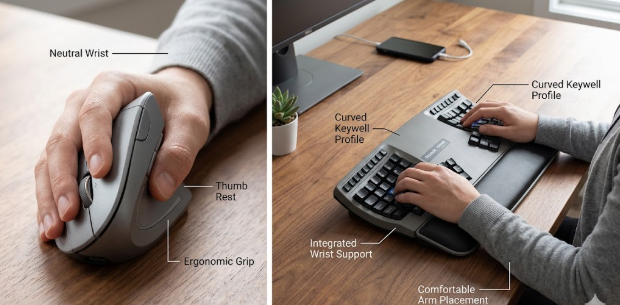
Ergonomic keyboards address the first problem by splitting, curving, or tilting the keyboard surface to reduce ulnar deviation and wrist extension. Ergonomic mice address the second by reducing forearm pronation (vertical mice), repositioning the mouse closer to the body’s centerline (roller bar mice or touchpads), or both.
The most important thing before buying: fix your keyboard and mouse position first
Before purchasing any ergonomic keyboard or mouse, three positioning changes to your current setup may reduce or resolve the pain with no new equipment required.
Move your mouse closer to the keyboard. If you are using a full-size keyboard with a numpad, switching to a tenkeyless (TKL) or compact keyboard brings the mouse approximately four to five inches closer to your body’s centerline. That single change reduces shoulder extension and internal rotation measurably. A compact keyboard costs $30 to $80 and produces a positioning improvement equivalent to an ergonomic mouse in many cases.
Position the keyboard slightly below elbow height, not at it. Most people position their keyboard at elbow height, but the natural typing position is slightly below elbow level — approximately 1 to 2 inches. This allows the elbows to relax downward slightly and reduces the sustained forearm elevation that causes shoulder fatigue.
Use negative tilt if your keyboard allows it. Negative tilt means the back of the keyboard is lower than the front, angling the keys away from you rather than toward you. Most keyboards tilt the other way (positive tilt, back higher than front), which increases wrist extension. Negative tilt reduces it. Many adjustable keyboard trays allow this; some ergonomic keyboards have built-in legs for it.
With those three changes implemented, evaluate whether the pain is still present before purchasing ergonomic devices. Many people find that positional correction alone resolves most of their input device strain.
Ergonomic keyboards: the three types and who each suits
Split keyboards divide the key surface into two sections — one for each hand — and allow each half to be positioned at shoulder width rather than forcing both hands toward a single center. This directly addresses ulnar deviation. The two halves may be attached in a wave curve (Logitech ERGO K860) or fully separate and independently adjustable (Microsoft Sculpt, or more advanced options like the MoErgo Glove80). Split keyboards have the broadest research support for reducing carpal tunnel and wrist strain in office workers.
Curved or wave keyboards use a single piece with a curved layout that approximates the split design at a lower learning curve. They reduce ulnar deviation compared to flat keyboards without requiring adaptation to a fully separated layout. The Logitech ERGO K860 is the best-selling example of this design.
Compact or TKL keyboards are not ergonomic in shape but improve ergonomics by removing the numpad, bringing the mouse closer to the body. For upper back and shoulder pain where the primary issue is mouse reach rather than wrist angle, a compact keyboard may be the most effective ergonomic intervention available.
Quick picks
Best ergonomic keyboard overall: Logitech ERGO K860 — the most widely used split-curve keyboard, approximately $100 to $130, with the best balance of ergonomic design and standard keyboard feel for the transition user. Best vertical mouse for wrist and forearm pain: Logitech Lift Vertical — approximately $50 to $70, the most accessible vertical mouse with broad compatibility, comfortable for small to medium hands. Best vertical mouse for medium to large hands: Logitech MX Vertical — approximately $80 to $100, larger form factor and 4000 DPI sensor. Best keyboard and mouse combo: Logitech ERGO K860 plus the Lift Vertical (~$150 to $200 combined), the most recommended pairing for remote workers with wrist and shoulder pain. Best for shoulder and upper back pain (not just wrist): a compact or TKL keyboard to bring the mouse closer, paired with any ergonomic mouse — a positional fix that costs less than a premium ergonomic keyboard alone.
Comparison table
| Product | Type | Price (approx.) | Best for | Hand size |
|---|---|---|---|---|
| Logitech ERGO K860 | Split-curve keyboard | ~$100–$130 | Wrist and forearm strain, general ergonomic upgrade | N/A |
| Microsoft Sculpt Ergonomic | Split keyboard | ~$60–$80 | Budget split keyboard, wrist deviation | N/A |
| Logitech Lift Vertical | Vertical mouse | ~$50–$70 | Wrist pronation pain, forearm fatigue | Small to medium |
| Logitech MX Vertical | Vertical mouse | ~$80–$100 | Wrist pronation pain, precision work | Medium to large |
| Contour RollerMouse Red | Centered roller bar | ~$210–$250 | Shoulder and upper back pain | Any |
| Perixx PERIMICE-713 | Vertical mouse (budget) | ~$25–$35 | Budget vertical mouse, first-time ergonomic try | Medium |
Prices are approximate and change frequently. Always verify current pricing before purchasing.
1. Logitech ERGO K860 — best ergonomic keyboard for most users
The Logitech ERGO K860 is the most widely sold ergonomic keyboard in the world and the standard recommendation for office workers making their first transition away from a flat keyboard. Its split-curve design positions the two halves at a natural angle — roughly 10 degrees of divergence — that significantly reduces the ulnar deviation a flat keyboard requires, while keeping both halves physically connected so there is no adaptation period to a fully separate layout.
Current price: approximately $100 to $130 from Logitech directly or Amazon. Logitech also sells it as a bundle with the Lift Vertical or MX Vertical mouse.
The built-in wrist rest is cushioned with three layers — fabric, dense foam, and memory foam — and the adjustable tilt legs allow 0, -4, and -7 degrees of negative tilt, addressing wrist extension as well as deviation. Logitech’s own studies report a 25% reduction in wrist bending and a 21% reduction in upper trapezius muscle activity compared to a standard flat keyboard, which aligns with the mechanism this type of design is expected to address.
The keyboard connects via Bluetooth or the included USB receiver and can switch between up to three paired devices, which is useful for remote workers who toggle between a laptop and a desktop or between work and personal machines.
The adaptation period is shorter than for fully split keyboards because the layout remains familiar: it is still a standard QWERTY arrangement, just curved and angled. Most users report full adaptation within one to two weeks. The Logitech ERGO K860 does not have mechanical switches — it uses membrane keys — which some users prefer for quiet typing and others find less satisfying than mechanical. If tactile mechanical feedback is important to you, the Kinesis mWave (a tented Alice-split design with mechanical switches, approximately $30 cheaper than the K860) is the alternative most frequently recommended by the mechanical keyboard community.
This keyboard makes the most sense for: remote workers and office workers who type for most of the day, have wrist discomfort from a flat keyboard, and want the most accessible transition to an ergonomic layout without the steep adaptation curve of a fully split keyboard.
2. Microsoft Sculpt Ergonomic — best budget split keyboard
The Microsoft Sculpt Ergonomic Keyboard offers a similar split-curve ergonomic philosophy to the ERGO K860 at approximately $60 to $80, making it the most accessible option for users who want a genuine split keyboard without the $100-plus price tag. It features a dome-shaped keyboard surface with a separate numpad included in the box (which can be positioned wherever convenient, removing it from the right side of the keyboard and allowing the mouse to be placed closer to the body’s center).
Its cushioned wrist rest is thinner than the K860’s but functional for most users, and the key feel is comparable to other membrane keyboards in this price range. The primary limitation versus the K860 is the absence of tilt adjustment — the Sculpt has a fixed negative tilt built in — which for most users is actually the correct position, but for users who want to customize the angle it is a limitation.
This keyboard makes the most sense for: budget-conscious buyers who want a split ergonomic keyboard under $80 and are willing to trade the K860’s adjustability for a lower entry cost.
3. Logitech Lift Vertical — best vertical mouse for small to medium hands
The Logitech Lift Vertical is the most frequently recommended vertical mouse for users transitioning from a conventional horizontal mouse for the first time. At approximately $50 to $70, it is priced accessibly for the category, and its 57-degree vertical angle positions the hand in a neutral “handshake” position that eliminates the forearm pronation that standard horizontal mice require.
Current price: approximately $50 to $70 on Amazon or Logitech direct, available in graphite, off-white, and rose colors.
CNN’s independent testing of nine ergonomic mice noted that most ergonomic mice that actually help pain start at around $80, but the Lift Vertical consistently appears as the exception — reviewers found meaningful wrist and forearm relief at its price point. Its textured grip and thumb rest feel natural for hands in the small to medium range. The scroll wheel is responsive and the silent clicks are noticeably quieter than most conventional mice, which is a secondary but appreciated feature for shared spaces.
The limitation is hand size: the Lift is designed for small to medium hands, and users with larger hands consistently report that the Lift feels cramped. If your hand is medium to large, the MX Vertical is the more appropriate choice.
This mouse makes the most sense for: users with small to medium hands who experience wrist or forearm pain from prolonged conventional mouse use and want the most accessible price point in the vertical mouse category.
4. Logitech MX Vertical — best vertical mouse for medium to large hands
The Logitech MX Vertical is the premium vertical mouse in Logitech’s lineup, scaled for medium to large hands and equipped with a 4000 DPI high-precision sensor. At approximately $80 to $100, it is priced higher than the Lift but addresses the hand-size limitation directly.
Current price: approximately $80 to $100 on Amazon.
Its 57-degree vertical angle matches the Lift’s ergonomic principle but in a larger physical form that supports more of the palm and fingers for users who found the Lift too small. The 4000 DPI sensor requires less physical mouse movement per inch of cursor movement — approximately 4 times less than a 1000 DPI standard mouse — which reduces the cumulative arm and shoulder movement during a workday. The rechargeable battery charges via USB-C and lasts approximately 4 months on a single charge.
This mouse makes the most sense for: users with medium to large hands, or those who do precision work that benefits from the higher DPI sensor, or anyone who found the Lift too small.
5. Contour RollerMouse Red — best for shoulder and upper back pain specifically
The Contour RollerMouse Red takes a fundamentally different approach to ergonomic mouse design: instead of sitting to the right of the keyboard like every other mouse in this list, it sits directly in front of the keyboard, centered on the desk, with a rollerbar that you manipulate with both thumbs while keeping both hands at the keyboard. This eliminates the sideways reach that makes the mouse position a driver of shoulder and upper back pain.
Current price: approximately $210 to $250, making it significantly more expensive than the other mice in this list.
A 2015 study from the Harvard School of Public Health and Northeastern University published in Applied Ergonomics found that centrally located pointing devices (of which the RollerMouse is the best-known example) significantly reduced shoulder and neck muscle activity compared to conventional mice. For users whose pain is concentrated in the shoulder and upper back rather than the wrist, this is the most targeted ergonomic solution available.
The learning curve is real: the rollerbar takes one to two weeks to adapt to after years of conventional mouse use. But for users with persistent shoulder and neck pain that has not responded to a vertical mouse, the RollerMouse’s centering design addresses a different mechanism than any handheld mouse can.
This mouse makes the most sense for: users whose primary pain is in the shoulder, upper back, or neck, who have already tried a vertical mouse and found insufficient improvement, and who are willing to invest in the most targeted ergonomic pointing device for that specific pain pattern.
Budget option: Perixx PERIMICE-713
For users who want to test whether a vertical mouse helps before committing to Logitech pricing, the Perixx PERIMICE-713 at approximately $25 to $35 is the most recommended budget vertical mouse in the r/ErgonomicsAdvice community. It provides the same fundamental wrist-neutral positioning as the Logitech Lift at a fraction of the price, with the trade-offs of lower build quality, fewer buttons, and wired-only connectivity. It is a reasonable starting point for first-time vertical mouse users before deciding whether to invest in a Logitech option.
Matching the right device to your specific pain
The device that helps most depends on where your pain is. For wrist and forearm pain — typically felt as tenderness in the wrist tendons, forearm muscles, or tingling in the fingers — a vertical mouse addresses the pronation mechanism most directly, and a split or curved keyboard addresses the wrist deviation mechanism. The Logitech K860 plus Lift Vertical combination addresses both simultaneously and is the most commonly recommended first ergonomic upgrade for this pain pattern.
For shoulder and upper back pain — typically felt as tightness or aching in the trapezius, rhomboids, or posterior deltoid on the dominant side — the primary driver is usually the sideways reach to the conventional mouse. Bringing the mouse closer (compact keyboard) or centering it (RollerMouse) addresses this mechanism more directly than a vertical mouse does. If shoulder pain is the primary complaint and you are still using a full-size keyboard with a numpad, a compact keyboard is the first purchase to make.
For neck pain combined with keyboard and mouse use — typically felt as stiffness or aching in the cervical muscles or base of the skull — the primary driver is often the monitor position rather than the input devices. Check monitor height and distance before purchasing input devices. If the monitor is correctly positioned and neck pain persists, it is often related to sustained shoulder elevation from armrests set too high, which is again a positioning issue rather than a device issue.
Frequently asked questions
Do ergonomic keyboards actually help with back and neck pain? Ergonomic keyboards directly reduce wrist and forearm strain. Their effect on back and neck pain is indirect: by allowing more natural shoulder and arm positions, they can reduce the muscular tension that propagates upward from the arms to the upper back and neck. However, monitor height and chair positioning have a larger direct effect on neck and back pain than input device design. Address positioning first.
How long does it take to adapt to a vertical mouse? Most users report full adaptation within one to three weeks. The first few days may feel awkward because the hand position is unfamiliar, but precision and speed typically return to pre-switch levels within a week or two. The ERGO K860 typically takes one to two weeks for full adaptation because the layout is familiar even though the angle is new.
Is a vertical mouse or a trackball better for wrist pain? Both reduce pronation compared to a conventional horizontal mouse, but through different mechanisms. A vertical mouse maintains a mobile-hand approach and tends to be easier to adapt to. A trackball keeps the hand stationary and moves a ball with fingers or thumb to control the cursor, which eliminates the shoulder movement of mousing entirely. For users with severe wrist pain where even vertical mouse movement is uncomfortable, a trackball like the Logitech MX Ergo (~$100) is the next progression.
Should I buy an ergonomic keyboard and mouse together? If your pain involves both wrist and forearm symptoms, upgrading both together is more effective than either alone. The Logitech ERGO K860 plus Lift Vertical bundle (approximately $150 to $200 combined) is the most practical starting combination. If budget is limited, start with whichever device addresses your primary symptom — keyboard for wrist deviation pain, mouse for pronation and shoulder pain — and add the second later.
Conclusion
For most remote workers with wrist, forearm, or shoulder pain from prolonged keyboard and mouse use, the Logitech ERGO K860 plus the Lift Vertical (or MX Vertical for larger hands) is the best starting combination available in 2026. Both are well-established, well-reviewed, and address the primary mechanical causes of input device strain through proven ergonomic design principles. Together they cost approximately $150 to $200, which is less than most people spend on a month of physical therapy for the same symptoms.
For shoulder and upper back pain specifically, where the mouse reach is the primary driver, a compact or TKL keyboard is often the most cost-effective first step — bringing the mouse closer to the body’s center without any ergonomic device premium at all.
Whatever devices you choose, remember that correct positioning of the chair, desk, and monitor does most of the work. Ergonomic devices extend and refine the gains from correct positioning; they do not replace it.
Always verify current pricing on the manufacturer’s website or Amazon before purchasing.
Disclaimer: This article is for informational purposes only and does not constitute medical or professional ergonomic advice. We are not physicians or physical therapists. If you are experiencing pain, consult a qualified healthcare professional. Some links are affiliate links through which we may earn a commission at no additional cost to you.